> For the complete documentation index, see [llms.txt](https://docs.proxyman.com/llms.txt). Markdown versions of documentation pages are available by appending `.md` to page URLs; this page is available as [Markdown](https://docs.proxyman.com/team-workspace/share-log-online.md).
# Share Log online
Share Proxyman logs and HAR files with your team online. Upload from the Proxyman app or Workspace, add notes, redact secrets and control who can view.
## 1. What’s it?
Proxyman HTTP Logs is the workspace feature that lets you upload, store, and share Proxyman HTTP capture files so you (and your team) can review issues with the same context.
Supported uploads:
* .proxymanlogv2, .proxymansessionv2, .har
* Max file size: 50 MB per upload
### Upload from Proxyman app
1. Make sure you've already logged into your [Team Workspace](/team-workspace/team-workspace.md)
2. In the Proxyman app -> Select the requests that you'd like to share -> Right-Click -> Export -> Share Online…
* Redact Sensitive Data: Remove tokens, passwords, cookies, and auth headers before sharing
* Add Note
* Change the name of the log
* Choose who can see this log
3. Click Share to share it to your workspace
Share Log Online in the Proxyman macOS app
### Upload from Workspace website
1. Visit -> Click on the Browse File button -> Select the Proxyman Log that you've already exported from your Mac.
{% hint style="info" %}
To export a Proxyman Log in the Proxyman app: Select the requests that you'd like to export -> Right-Click -> Export -> as Proxyman Log…
{% endhint %}
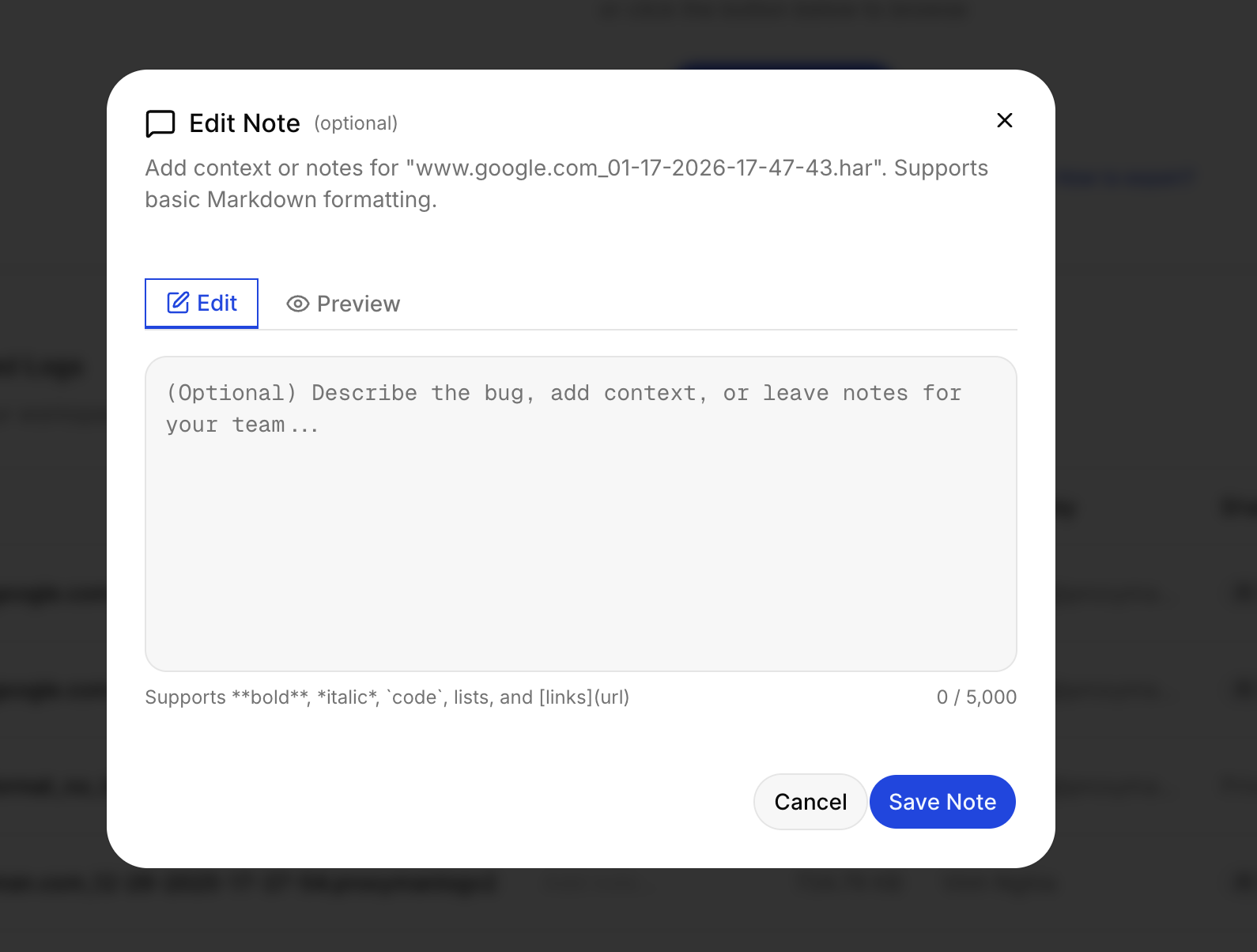
2. Add an optional note (Markdown supported)
3. Set sharing permissions
### Sharing & permissions model
Each log can be shared as:
* **Private**: only permitted viewers can access (default when no sharing is set)
* **Team**: all workspace members can view
* **Specific users**: only selected teammates can view (by email)
* **Public**: anyone with the share link can view
Important rules:
* A log has a share link: /shared/\
* Only the uploader can change sharing settings for that log (others can view if they have access, but can’t change permissions)
#### Roles (role-based access)
* Admin
* Full workspace access (licenses, logs, settings, team)
* Can view logs they have access to
* Can manage sharing only for logs they uploaded (uploader-only rule still applies)
* Developer
* Can view logs shared with them (via Team, Specific users, or Public link)
* Can upload logs and manage sharing only for logs they uploaded
{% hint style="info" %}
Team Subscription plan note: “Team” and “Specific users” sharing is designed for Team-plan workspaces where you have teammates in the workspace (seat-based access).
{% endhint %}
***
## 2. Benefit
* Fast collaboration: upload a capture once, share it with your team instantly.
* Clear context: add a note (Markdown supported) to explain what to look for.
* Flexible sharing: keep logs private, share to the whole team, specific teammates, or publicly via link.
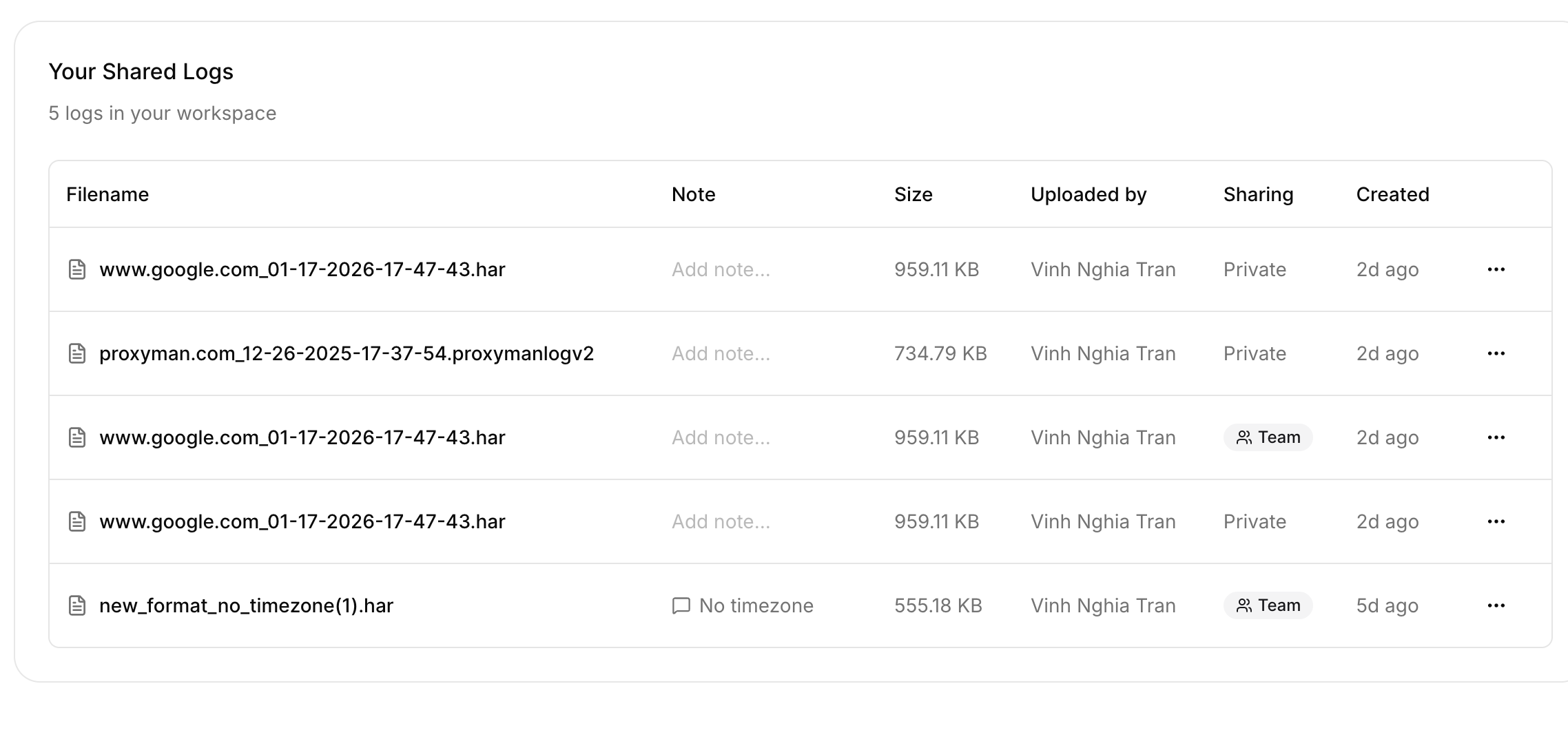
* Simple organization: see filename, size, uploader, sharing state, and relative upload time in one table.
* Storage safety: when quota is exceeded, the UI tells you how to recover (delete old logs or contact support to upgrade quota).
***
## 3. How to use it
### 1. Upload a log
You can upload in two ways:
* Click “Upload Log” / “Browse Files”
* Drag & drop the file into the drop zone
The page validates:
* File type (.proxymanlogv2, .proxymansessionv2, .har)
* File size (≤ 50 MB)
### 2. Add a note (optional)
After upload completes, a dialog opens to add a note:
* Supports basic Markdown (bold/italic/code/lists/links)
* Has a character limit (the UI will block saving if you exceed it)
* You can preview the rendered Markdown before saving
### 3. Configure sharing
After the note dialog closes, the Share Log dialog opens. You can:
* Toggle Public Access (anyone with the link can view)
* Toggle Team Access (all team members can view)
* Add Specific Users (only teammates in the workspace; you must invite them first)
Then click Save Changes. Notes:
* You can only add emails that belong to teammates already in your workspace
* Only the uploader can change these settings
### View, download, copy link, or delete
In Your Shared Logs, each log supports:
* Open the log details: click the filename (goes to /logs/\)
* Manage Sharing
* Add/Edit Note
* Download
* Copy Share Link (copies /shared/\)
* Delete (with confirmation; cannot be undone)
### If the storage quota is exceeded
If you hit the workspace storage limit during upload, you’ll see Storage Quota Exceeded with options to:
* Delete old log files to free space
* Contact to upgrade storage quota
## Learn more
* [How to Report API Bugs with a Proxyman Log or HAR File](https://proxyman.com/posts/2019-07-06-How-I-use-Proxyman-to-report-bugs-more-effectively)